- I. Giới thiệu về Streamlit
- II. Sử dụng Streamlit
- III. Build Applications
- IV. Deploy App
I. Giới thiệu về Streamlit
Để triển khai các mô hình cho người khác sử dụng
II. Sử dụng Streamlit
1. Cài đặt
Cài đặt streamlit trên GGColab
Cài đặt streamlit local
Bước 1: Cài Python ARM bằng Homebrew
⚠️ Không dùng Python system hoặc từ pyenv không rõ build!
brew install pythonXác nhận Python dùng là bản ARM:
arch         # Kết quả: arm64
python3 -V   # Kiểm tra version
Bước 2: Tạo môi trường ảo
python3 -m venv streamlit_env
source streamlit_env/bin/activate
Đây là môi trường venv native, không phụ thuộc conda hay pyenv → ít lỗi hơn trên M2. Bước 3: Cài Streamlit
pip install --upgrade pip setuptools wheel
pip install streamlit==1.26.0   # hoặc bản mới hơn, tuỳ nhu cầu
Bước 4: Test nhanh
Tạo file main.py:
import streamlit as st
st.title("Hello from Mac M2!")
st.write("✅ Streamlit chạy ngon lành trên Apple Silicon.")
Chạy:
streamlit run main.pyMở trình duyệt tại http://localhost:8501.
Bước 5: Một số lệnh tiện dụng
streamlit --version
streamlit cache clear
2. Text Elements
Display text: Title, Header, text, caption
import streamlit as st
st.title("MY PROJECT")
st.header("This is a header")
st.subheader("This is a subheader")
st.caption("This is a caption")
st.text("I love AI VIET NAM")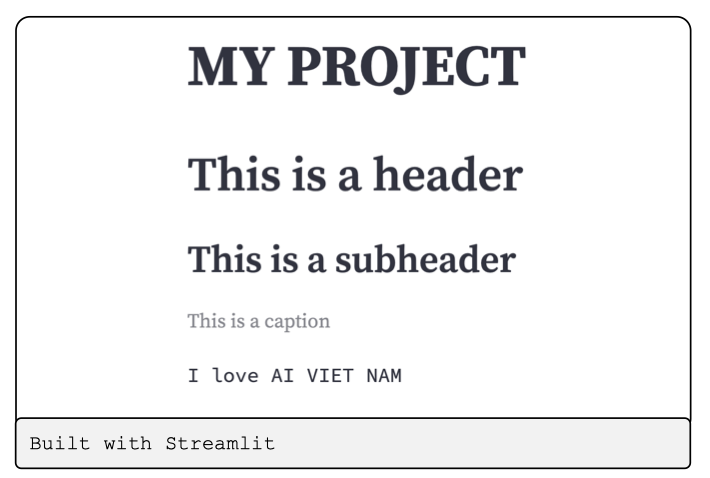 Gạch ngang kết sections:
st.divider()Display string formatted as Markdown
import streamlit as st
st.markdown("# Heading 1")
st.markdown("[AI VIET NAM]
						(https://aivietnam.edu.vn/)")
st.markdown("""
				1. Machine Learning
				2. Deep Learning """)
st.markdown(r"$\sqrt{2x+2}$")
st.latex(r"\sqrt{2x+2}")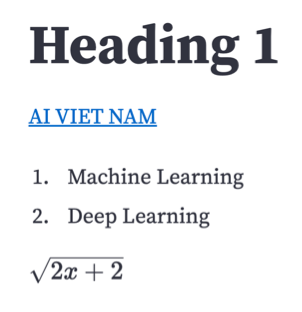
Colored badge with an icon and label
import streamlit as st
st.badge("New")
st.badge("Success",
icon=":material/check:",
color="green")
st.markdown(
":violet-badge[:material/star: Favorite]
\ :orange-badge[⚠ Needs review]
\ :gray-badge[Deprecated]" )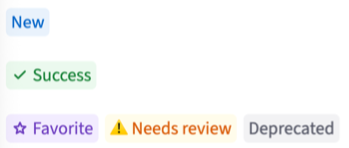
Code format
import streamlit as st
st.code(""" import torch
						data = torch.Tensor([1, 2, 3])
						print(data)
				""", language="python")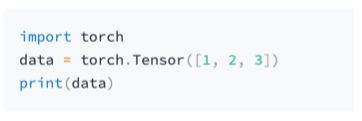
Hiển thị code
import streamlit as st
def get_user_name():
return 'Thai' with st.echo():
st.write('This code will be printed’) def get_email():
return 'thai@gmail.com’ user_name = get_user_name() email = get_email() st.write(user_name, email)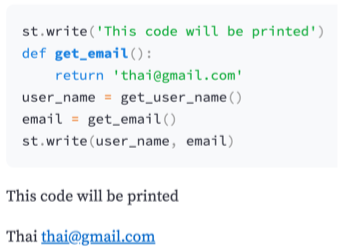
Write arguments to the app
import streamlit as st
st.write('I love AI VIET NAM')
st.write('## Heading 2')
st.write('$ \sqrt{2x+2} $')
st.write('1 + 1 = ', 2)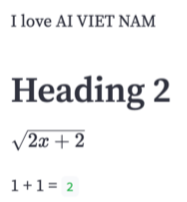
Lưu ý:
st.write("Hello", "World")
>>
Hello World
Hàm write giống như print() nên sẽ không có xuống dòng hay báo lỗi.
3. Media Elements
Logo
import streamlit as st
st.logo('./logo.png')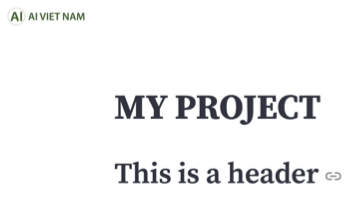
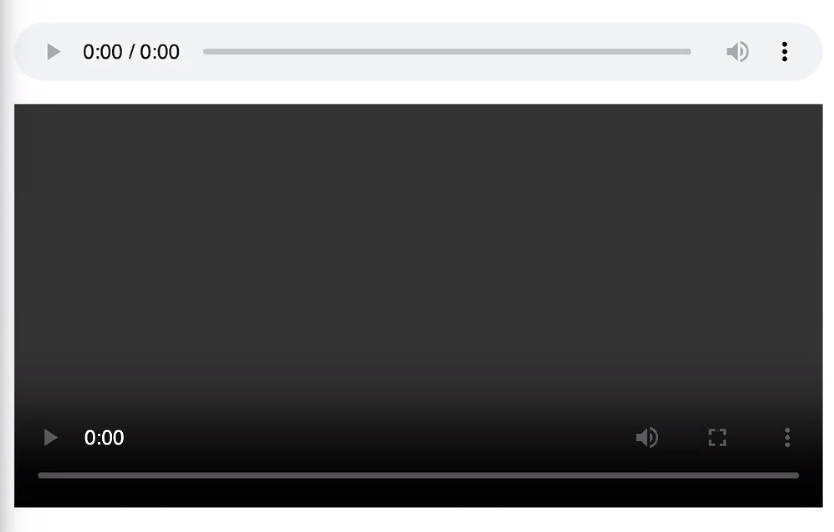
Image – Audio - Video
import streamlit as st
st.image(
		‘./Theme.jpeg’,
		caption=‘Theme.')
st.audio('./audio.mp4')
st.video('./video.mp4')
4. Input Widget
Button elements
import streamlit as st
if st.button("Say hello"):
		st.write("Hello")
else:
		st.write("Goodbye")
st.link_button( "Go to Google",
								"https://www.google.com.vn/" )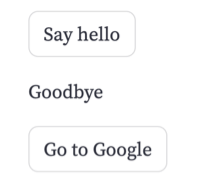
5. Selection elements:
Checkbox – Radio
import streamlit as st
def get_name():
		st.write("Thai")

agree = st.checkbox("I agree",
		on_change=get_name)
if agree:
		st.write("Great!")

		st.radio(
				"Your favorite color:",
				['Yellow', ‘Blue’],
				captions = ['Vàng', 'Xanh'])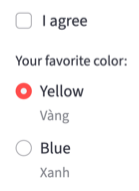
Selectbox
import streamlit as st
option = st.selectbox(
"Your contact:",
("Email", "Home phone", "Mobile phone"))
\#Output
st.write("Selected:", option)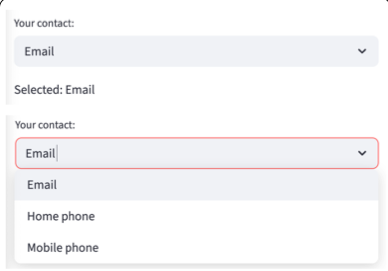
Multiselect
import streamlit as st
options = st.multiselect(
"Your favorite colors:",
["Green", "Yellow", "Red", "Blue"],
["Yellow", "Red"])
\#Output
st.write("You selected:", options)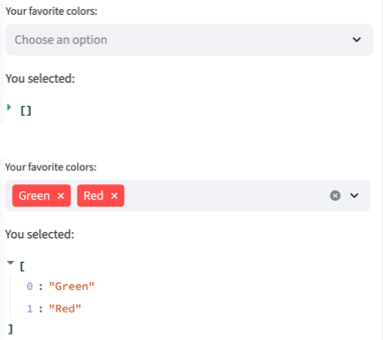
Select slider
import streamlit as st
color = st.select_slider(
"Your favorite color:",
options=["red", "orange", "violet"])
st.write("My favorite color is", color)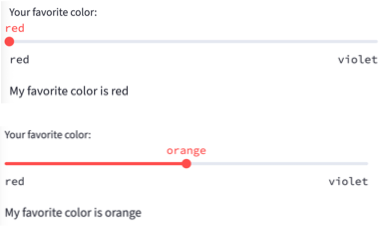
6. Text Input Elements
Text input
import streamlit as st
title = st.text_input( "Movie title:",
												"Life of Brian" )
st.write("The current movie title is", title)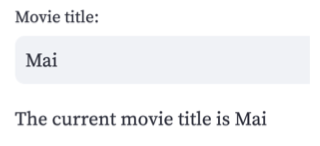
Numeric input
import streamlit as st
number = st.number_input("Insert a number")
st.write("The current number is ", number)
values = st.slider( "Select a range of values", 0.0, 100.0, (25.0, 75.0))
st.write("Values:", values)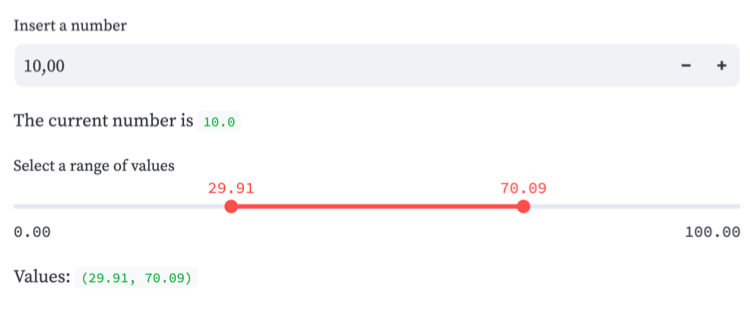
Chat Elements
import streamlit as st
messages = st.container(height=200)
if prompt := st.chat_input("Say something"):
		messages.chat_message("user").write(prompt)
		messages.chat_message("assistant").write(f"Echo: {prompt}")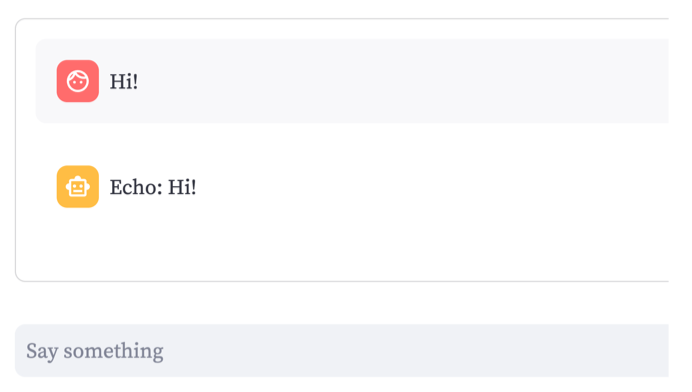
7. File Uploader Widget
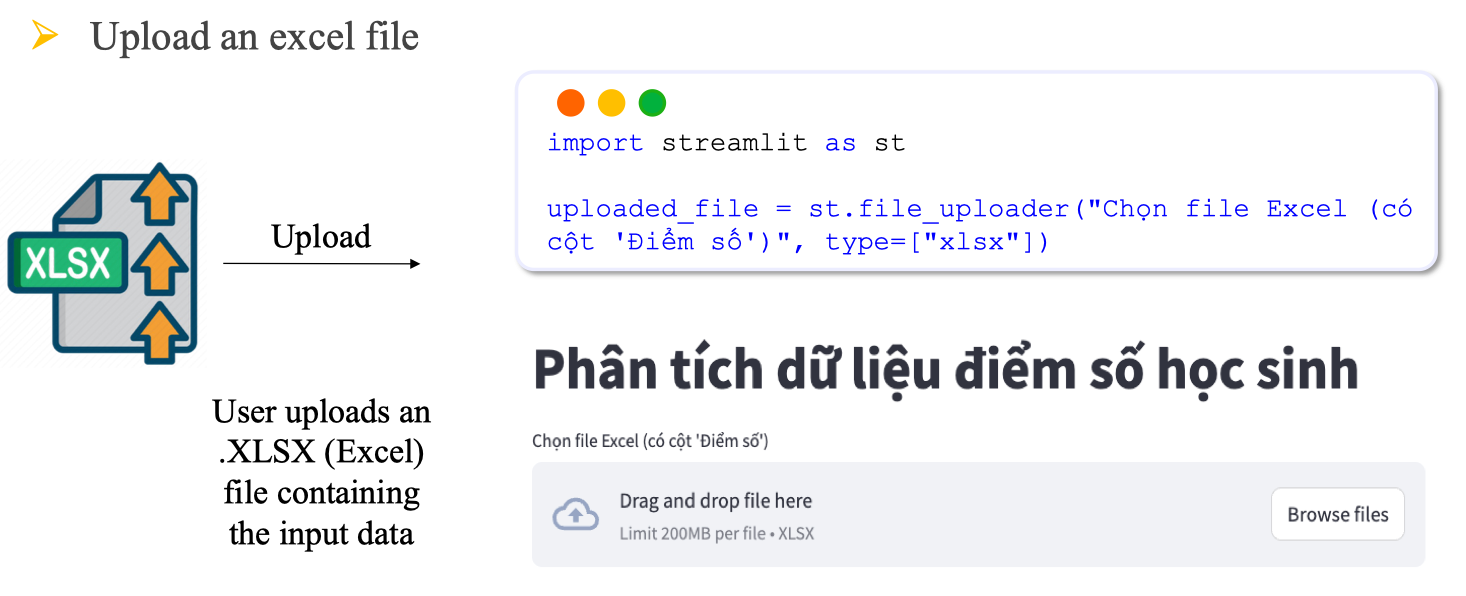
Upload multiple files
import streamlit as st
uploaded_files = st.file_uploader( "Choose files", accept_multiple_files=True)
for uploaded_file in uploaded_files:
bytes_data = uploaded_file.read()
st.write("filename:", uploaded_file.name)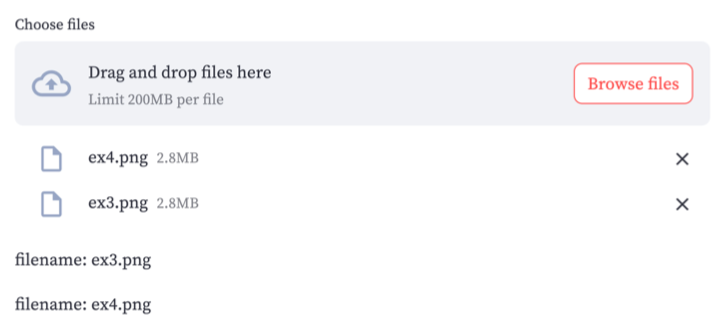 Lưu ý: Dung lượng tối đa mỗi file được tải lên trong streamlit chỉ 200Mb
Create a form with a “Submit” button
import streamlit as st
with st.form("my_form"):
		col1, col2 = st.columns(2)
		f_name = col1.text_input('First Name’)
		l_name = col2.text_input('Last Name’)
		submitted = st.form_submit_button("Submit")
		if submitted:
				st.write("First Name: ", f_name," - Last Name:", l_name)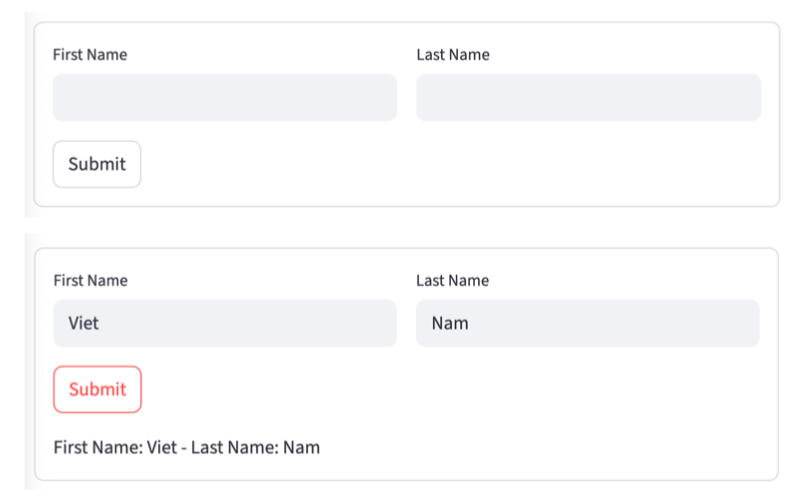
8. Data Elements
Display a dataframe, static table, metrics, Json
Hiển thị bảng pandas
import streamlit as st
import pandas as pd
import numpy as np
df = pd.DataFrame( np.random.randn(7, 5), columns=("col %d" % i for i in range(5)) )
st.dataframe(df)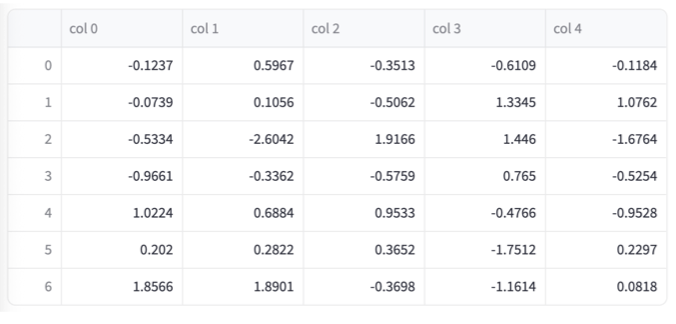
import streamlit as st
a, b = st.columns(2)
c, d = st.columns(2)
a.metric("Temperature", "30°F", "9°F", border=True)
b.metric("Wind", "4 mph", "2 mph", border=True)
c.metric("Humidity", "77%", "5%", border=True)
d.metric("Pressure", "30.34 inHg", "-2 inHg", border=True)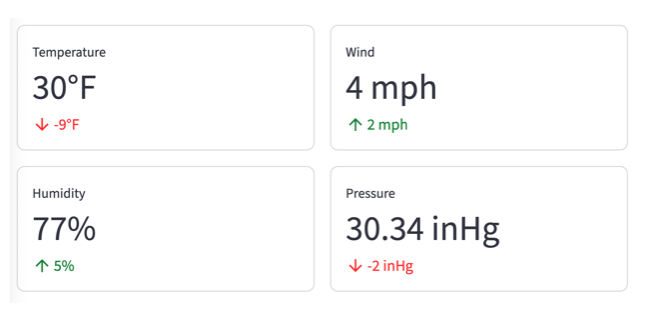
Display charts: line, bar, scatter, …
import streamlit as st
import pandas as pd
import numpy as np
chart_data = pd.DataFrame(np.random.randn(10, 3), columns=["a", "b", "c"] )
st.bar_chart(chart_data)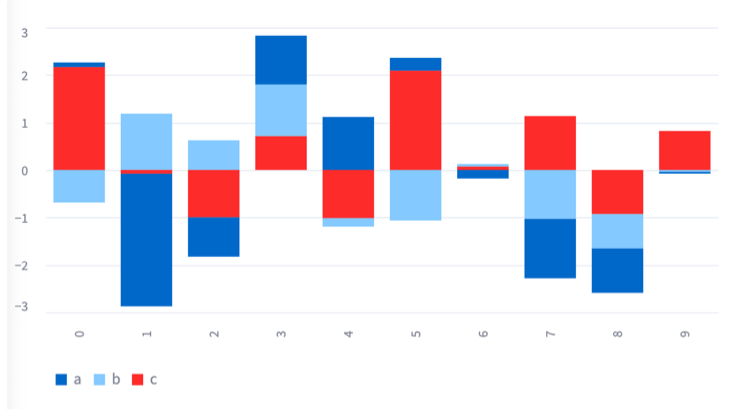
import streamlit as st
import pandas as pd
import numpy as np
chart_data = pd.DataFrame( np.random.randn(10, 3), columns=["a", "b", "c"] )
st.line_chart(chart_data)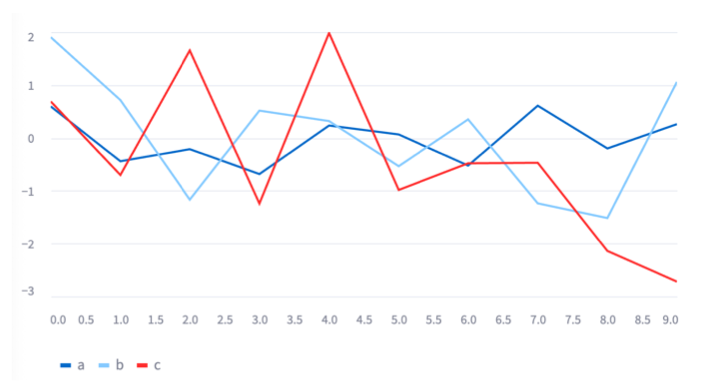
9. Layouts and containers
Insert a multi-element container
import streamlit as st
st.divider()
row1 = st.columns(3)
row2 = st.columns(3)
for col in row1 + row2:
		tile = col.container(height=120)
		tile.title(":balloon:")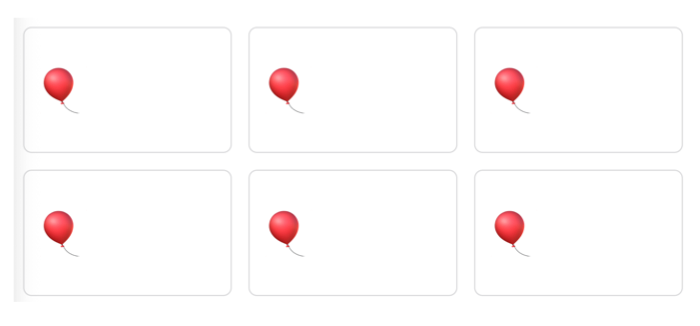
Display items in a sidebar
import streamlit as st
if st.button("Say hello"):
		st.write("Hello")
else:
		st.write("Goodbye")
st.link_button( "Go to Google", "https://www.google.com.vn/" )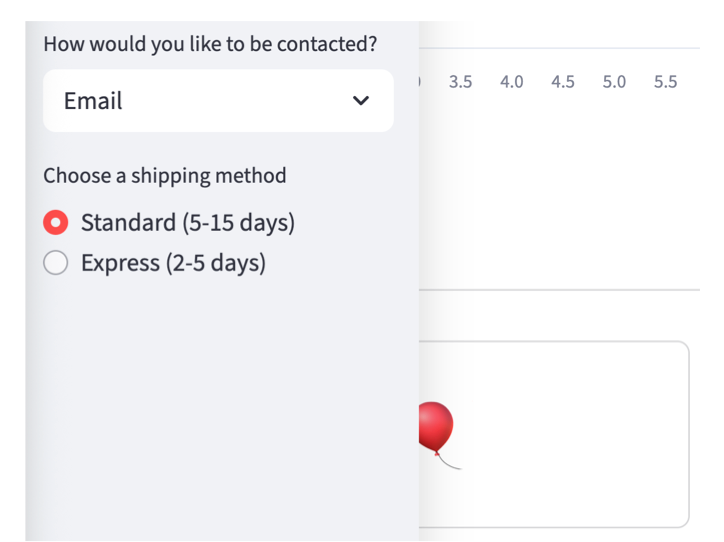
10. Authentication and user info
Session State
Là cách để lưu trạng thái (biến) giữa các lần tương tác người dùng, vì mỗi lần Streamlit rerun lại script từ đầu → tất cả biến toàn cục sẽ mất nếu không lưu vào st.session_state.
st.session_state = bộ nhớ tạm thời có thể ghi/đọc để giữ dữ liệu giữa các lần submit form, click button, thay đổi input…
import streamlit as st
# Khởi tạo nếu chưa có
if "count" not in st.session_state:
    st.session_state.count = 0
# Hiển thị
st.write("Current count:", st.session_state.count)
# Button
if st.button("Tăng"):
    st.session_state.count += 1
Quản lý thông tin người dùng
st.session_state["user"] = {
    "username": username,
    "role": "admin",
    "email": "user@example.com"
}
Và dùng ở các chỗ khác:
if st.session_state.get("user", {}).get("role") == "admin":
    show_admin_panel()
Ghi nhớ trạng thái người dùng
if "logged_in" not in st.session_state:
    st.session_state.logged_in = False
Giữ giá trị form khi submit
with st.form("login_form"):
    user = st.text_input("User")
    submitted = st.form_submit_button("Login")
    if submitted:
        st.session_state.logged_in = True
Chuyển hướng giữa các tab / step
if "page" not in st.session_state:
    st.session_state.page = "home"
if st.button("Next"):
    st.session_state.page = "result"
Thư viện streamlit-authenticator
Lib phổ biến nhất cho Streamlit auth (OAuth2 + hashed password).
pip install streamlit-authenticatorimport streamlit as st
import streamlit_authenticator as stauth
# Cấu hình người dùng
users = {
"usernames": {
"admin": {
"name": "Admin",
"password": stauth.Hasher(["123"]).generate()[0] # mã hóa password
}
}
}
authenticator = stauth.Authenticate(
users,
"my_cookie_name",
"some_signature_key",
cookie_expiry_days=1
)
name, auth_status, username = authenticator.login("Login", "main")
if auth_status:
st.success(f"Welcome {name}")
authenticator.logout("Logout", "sidebar")
elif auth_status is False:
st.error("Invalid credentials")✅ Có mã hóa password, session cookie
✅ Có role (phân quyền), có
logout(), hoạt động tốt
Tích hợp OAuth (Google, GitHub…)
- Dùng Auth0, Firebase, Supabase, hoặc backend riêng.
- Streamlit không xử lý OAuth – bạn cần redirect flow bằng
st.experimental_set_query_paramshoặc dựng reverse proxy. Ví dụ lib: [streamlit-oauth](https://github.com/jrieke/streamlit-oauth)authlib+ Flask + JWT phía backend
III. Build Applications
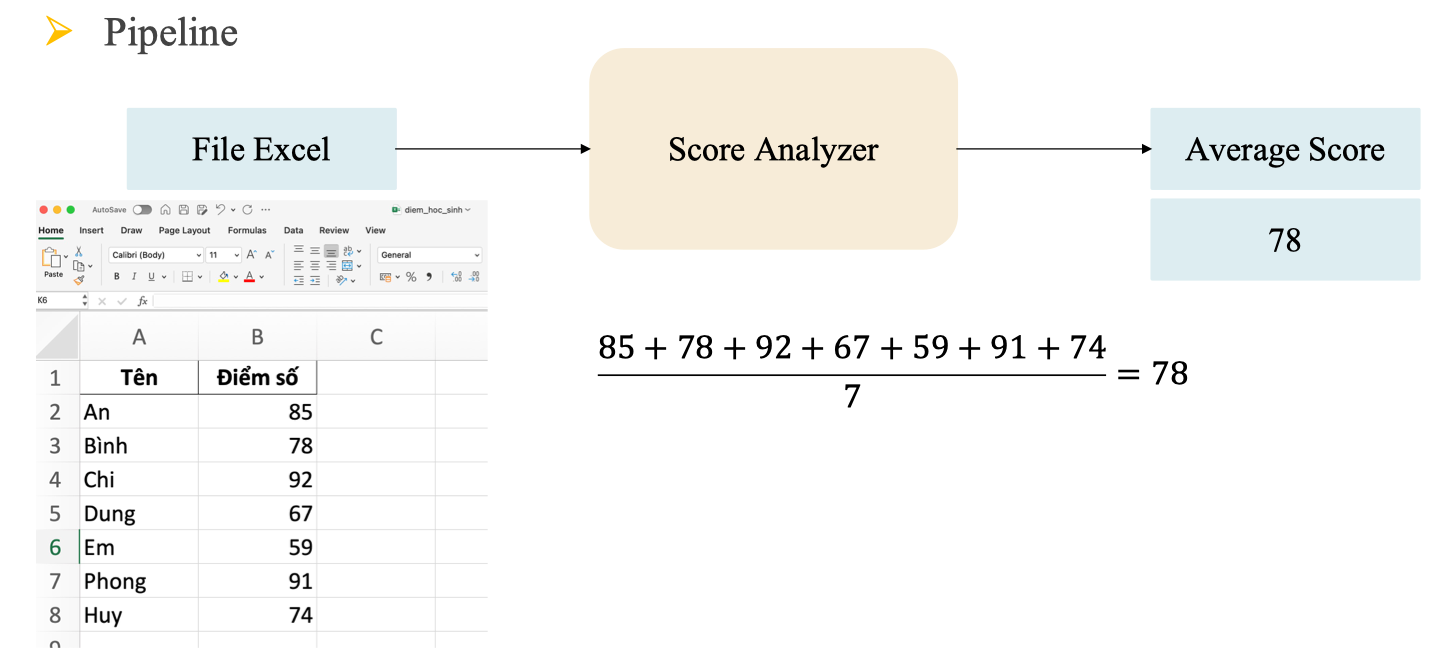
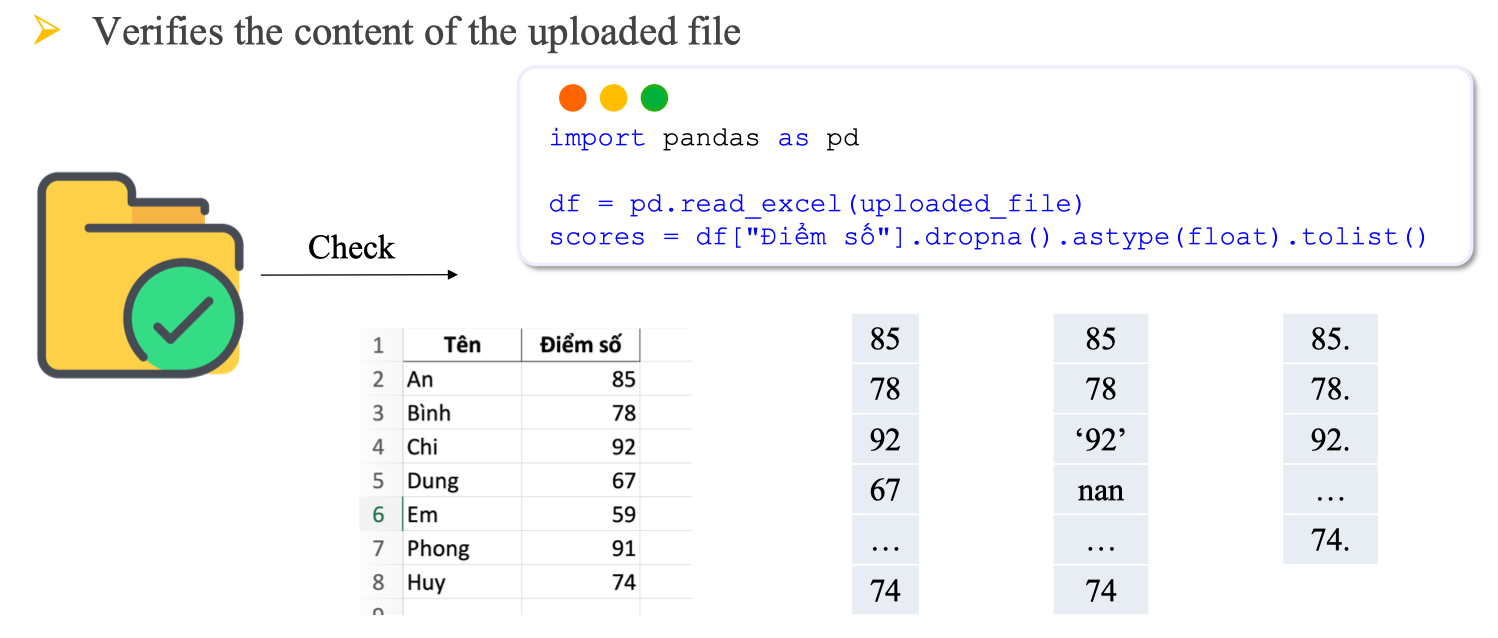
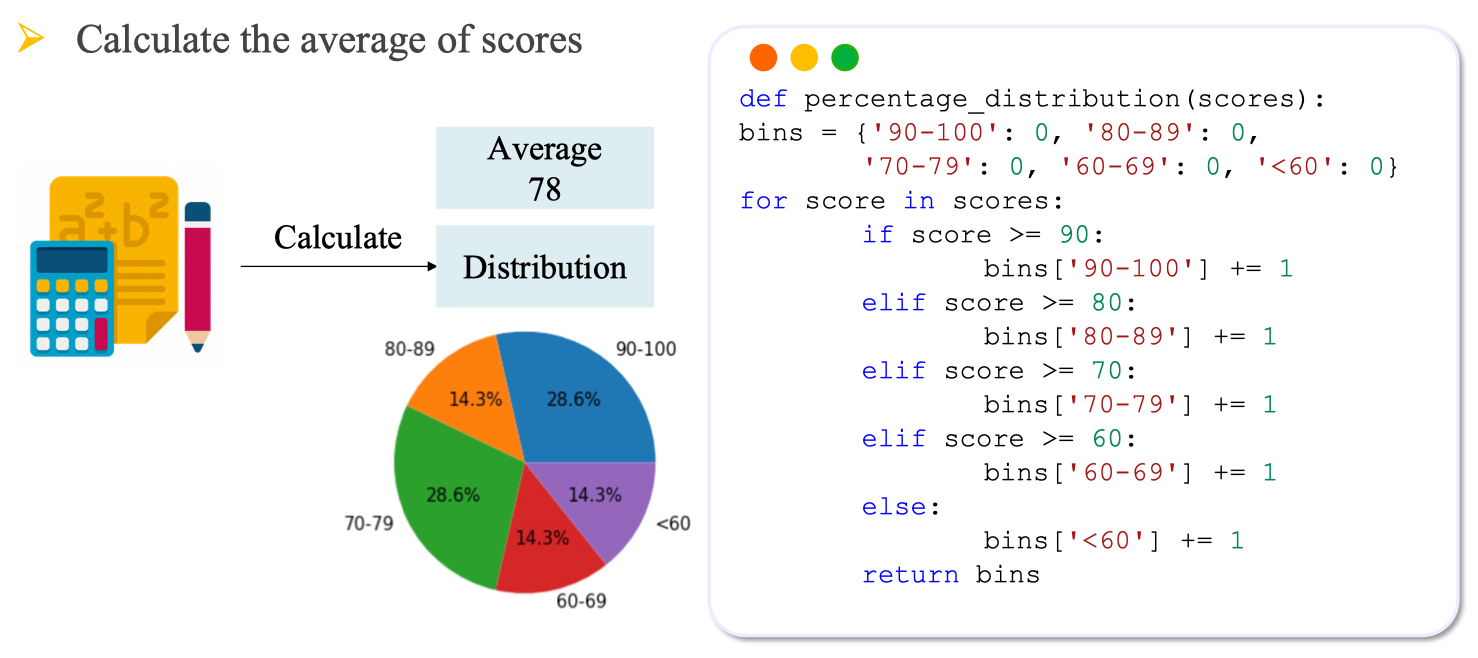
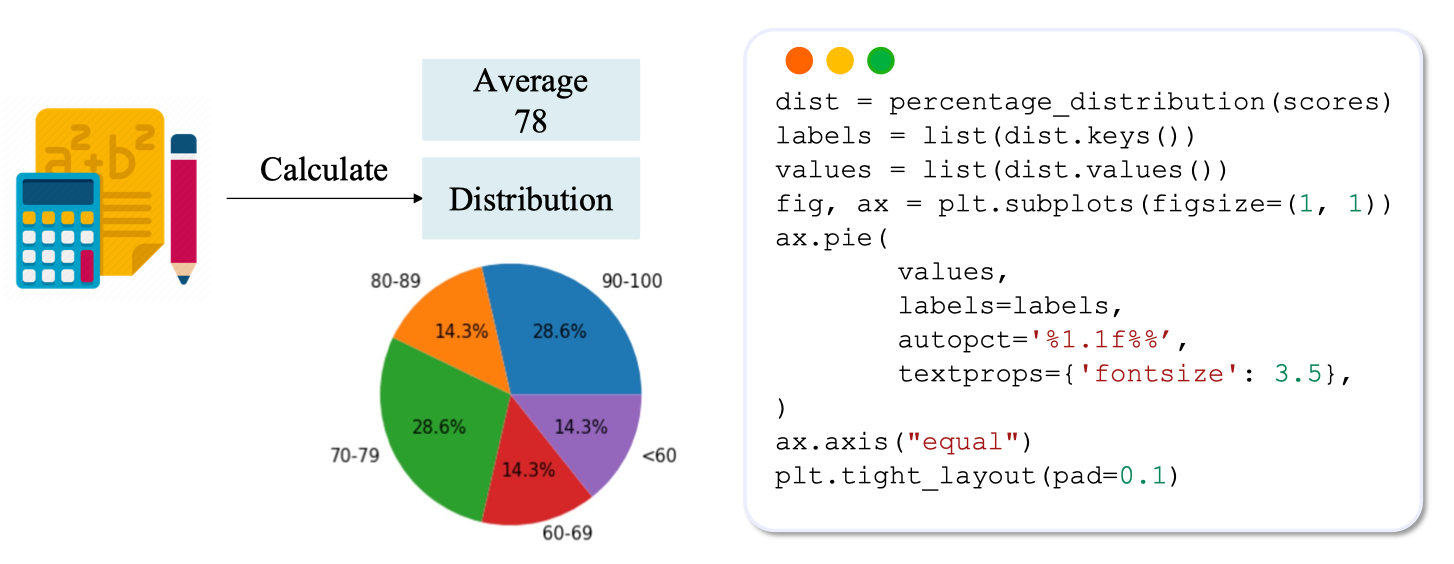
Exercise 1: Student Score Analysis Application
Pipeline
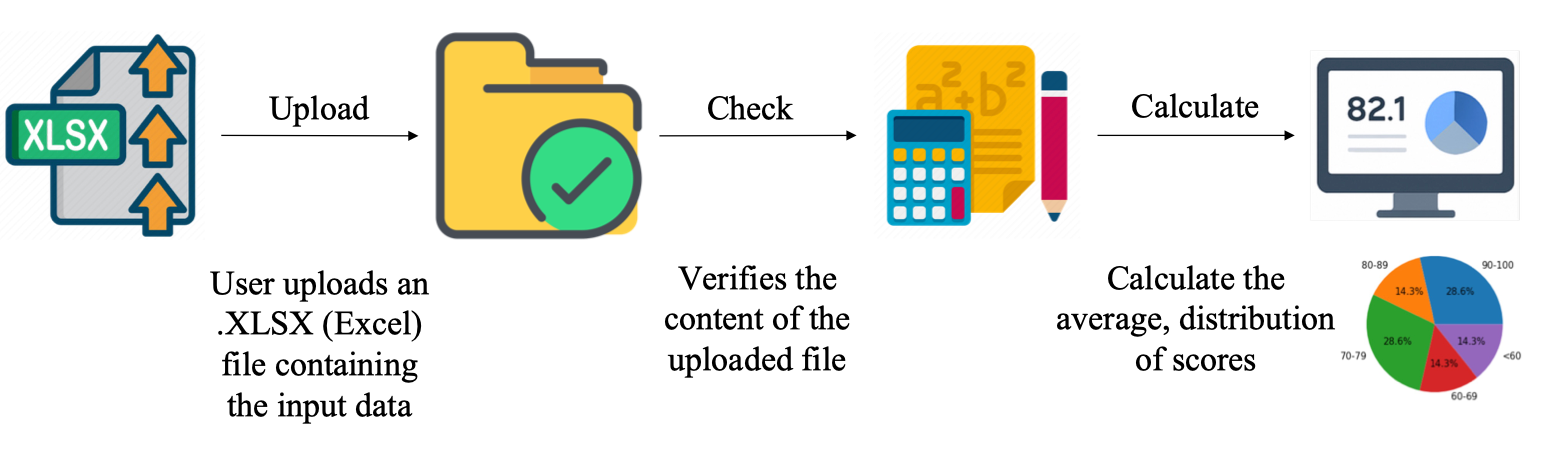
Upload an excel file
Verifies the content of the uploaded file
Calculate the average of scores
Show the percentage of score distribution
Exercise 2: Factorial Calculation Application
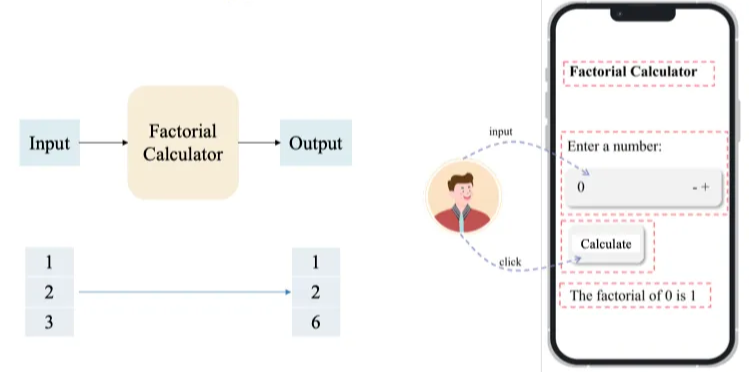
Factorial Function
def fact(n):
		if n == 0 or n == 1:
				return 1
		return n * fact(n - 1)
Factorial Calculation Application v1
import streamlit as st from factorial import fact
def main():
		st.title("Factorial Calculator")
		number = st.number_input("Enter a number:", min_value=0, max_value= 900)
		if st.button("Calculate"):
				result = fact(number)
				st.write(f"The factorial of {number} is {result}")
if __name__ == "__main__":
		main()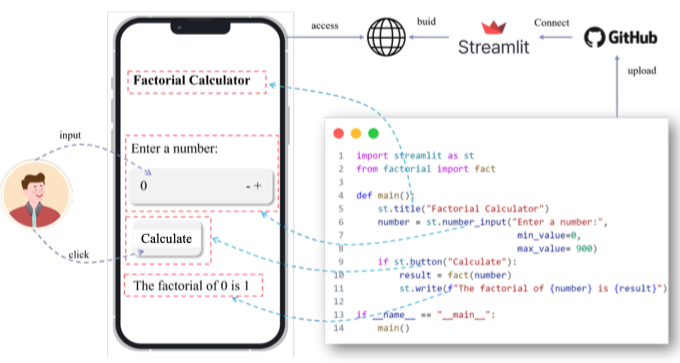
User Authentication / Authorization
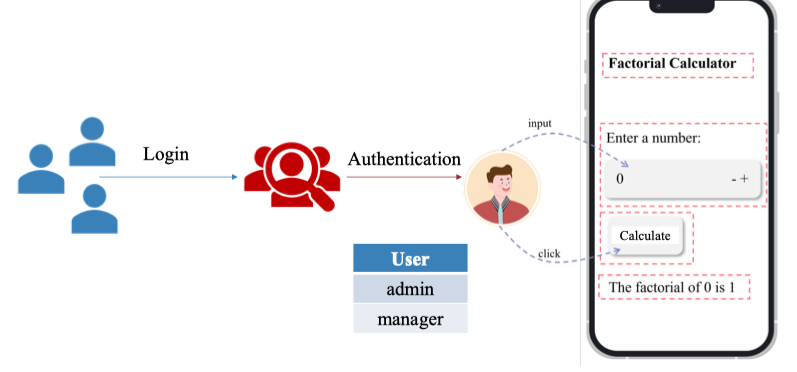 Session state is a way to share variables between reruns, for each user session
# Initialization
if 'key' not in st.session_state:
st.session_state['key'] = 'value'
if 'key' not in st.session_state:
st.session_state.key = 'value’
st.write(st.session_state.key) \#Show: "value"
st.rerun() \#Rerun the script immediately
st.write(st.session_state.key)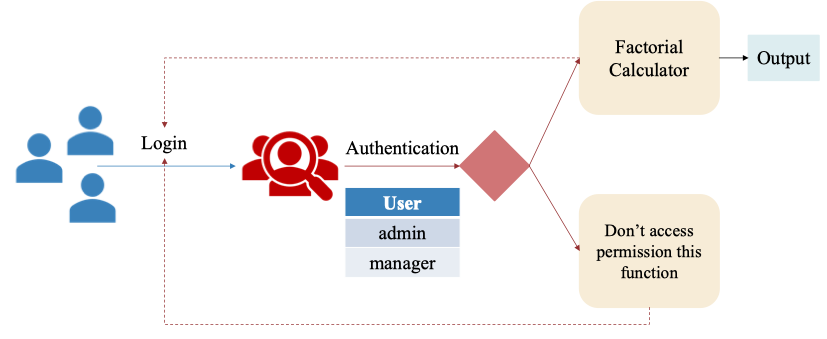 Load users:
def load_users():
"""Đọc danh sách user từ file user.txt"""
try:
if os.path.exists("user.txt"):
with open("user.txt", "r", encoding="utf-8") as f:
users = [line.strip() for line in f.readlines() if line.strip()]
return users
else:
st.error("File user.txt không tồn tại!")
return []
except Exception as e:
st.error(f"Lỗi khi đọc file user.txt: {e}")
return [] Login Function:
st.title("Đăng nhập")
# Input username
username = st.text_input("Nhập tên người dùng:")
if st.button("Đăng nhập"):
		if username:
				users = load_users()
				if username in users:
						st.session_state.logged_in = True
						st.session_state.username = username st.rerun()
				else:
						# user không hợp lệ
						st.session_state.show_greeting = True
						st.session_state.username = username
						st.rerun()
		else:
				st.warning("Vui lòng nhập tên người dùng!")
Factorial Calculation Application v2
Có thêm tính năng quản lý người dùng:
st.title ("Factorial Calculator")
# Hiền thị thông tin user đã đăng nhập
st.write(f"Xin chào, (st.session_state.username)!")
# Nút đăng xuất
if st.button ("Đăng xuất") :
		st.session_state.logged_in = False
		st.session_state.username = ""
		st. rerun ()
st. divider ()
# Chức năng tính giai thừa
number = st.number_input ("Nhập vào một số:",
		min_value=0,
		max_ value=900)
if st.button ("Tính giai thừa"):
		result = fact (number)
		st.write (f"Gia thừa của (number) là {result)")
Greeting Page:
def greeting_page():
"""Trang chào hỏi cho user không hợp lệ"""
		st.title("Xin chào!")
		st.write(f"Xin chào {st.session_state.username}!")
		st.write("Bạn không có quyền truy cập vào chức năng tính giai thừa.")

		if st.button("Quay lại đăng nhập"):
				st.session_state.show_greeting = False
				st.session_state.username = ""
				st.rerun()
Tham khảo đáp án:
AIO: https://github.com/thainq107/aio-2025.git